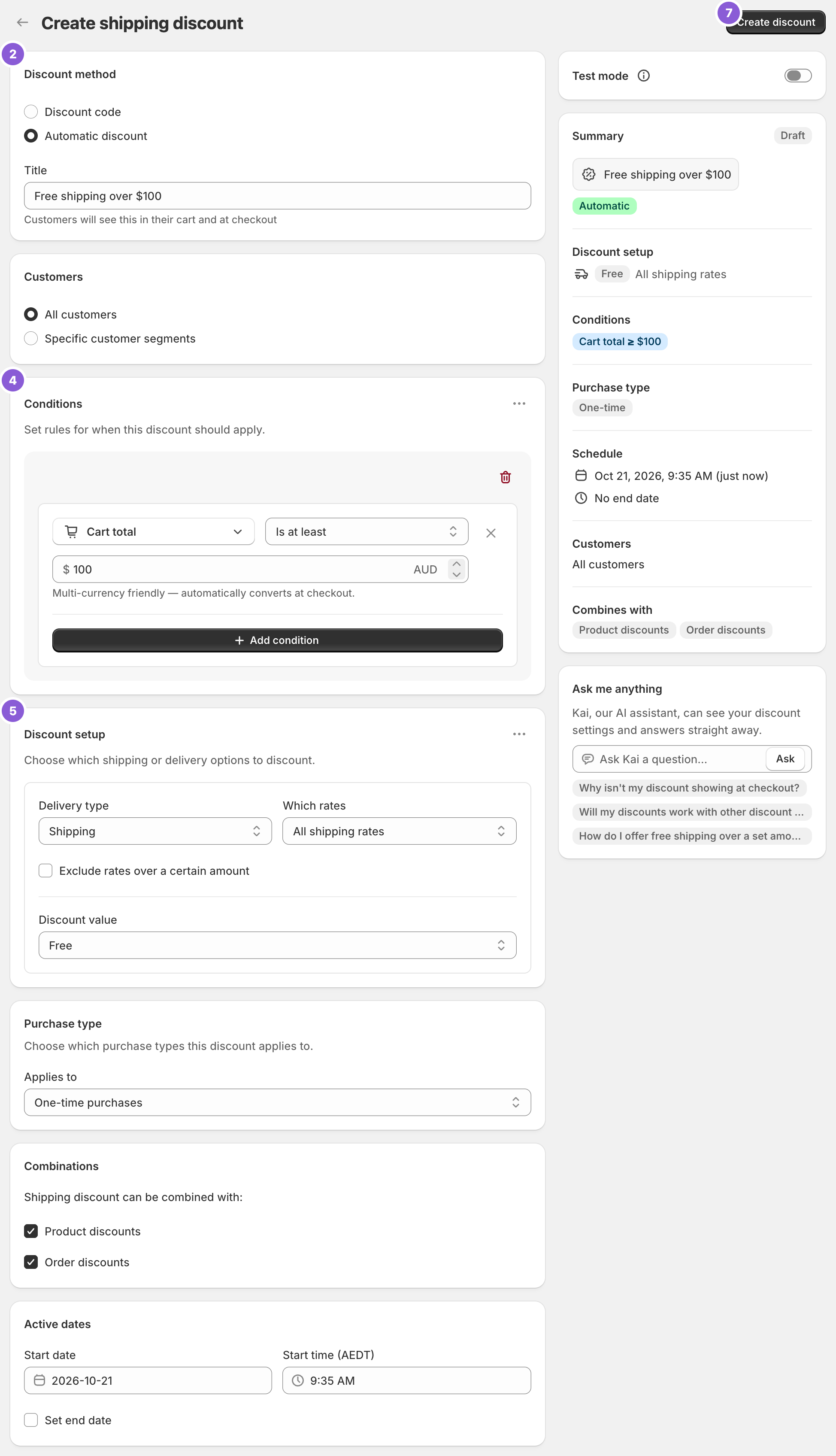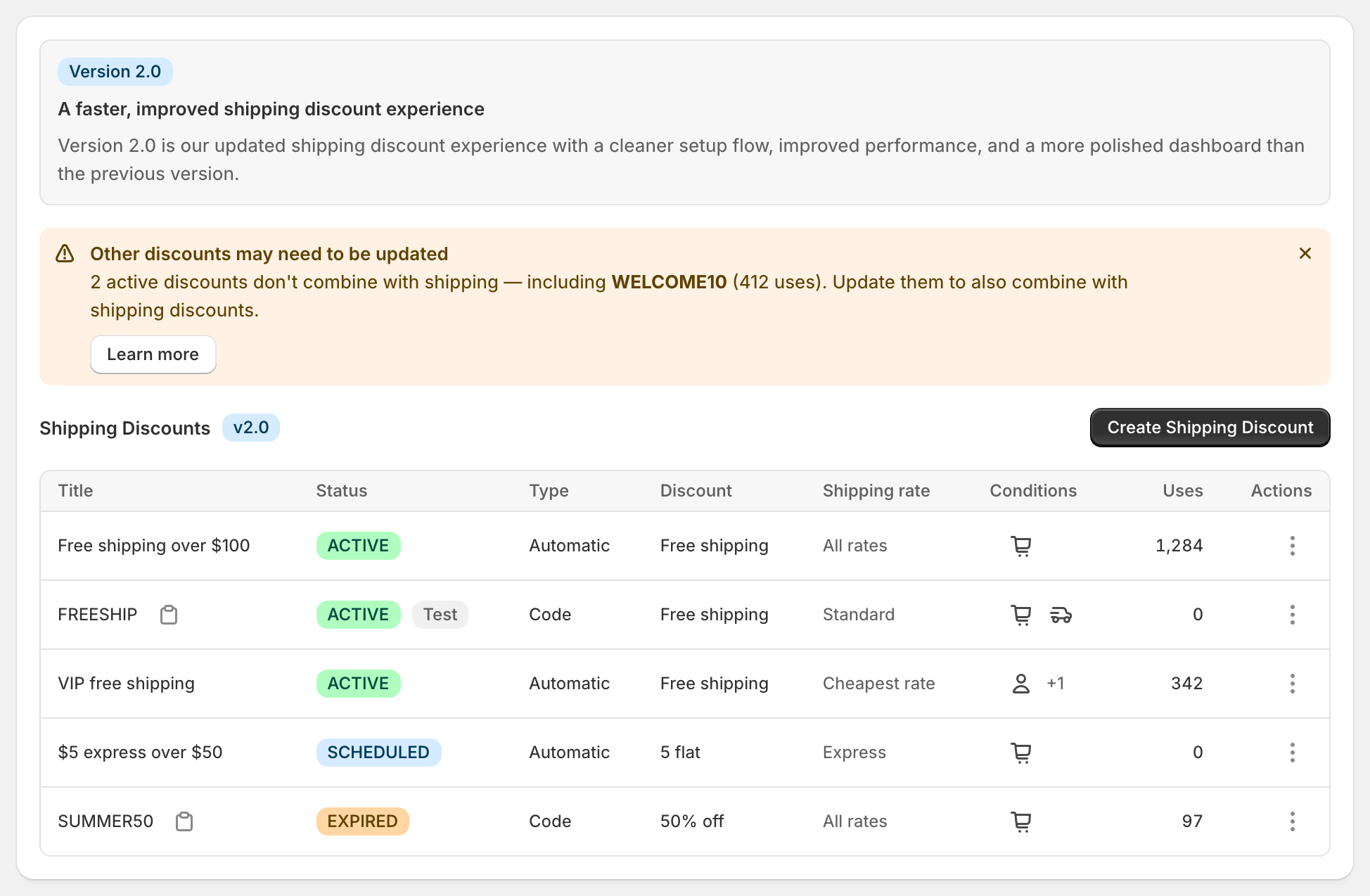
To give email subscribers free shipping, create a discount code such as SHIPFREE with the conditions you want, for example Cart total Is at least 40, then tick Limit to one use per customer and paste the code into your welcome email or flow. Shopify’s own free shipping discount can also be a code, but it makes every eligible rate free and has no product, state or ZIP conditions. RM: Advanced Free Shipping adds rate choice, product, location and customer conditions, and discounts other than free to the code. It costs $9.90 USD every 30 days, with a 7-day free trial, billed by Shopify.
What the customer gets
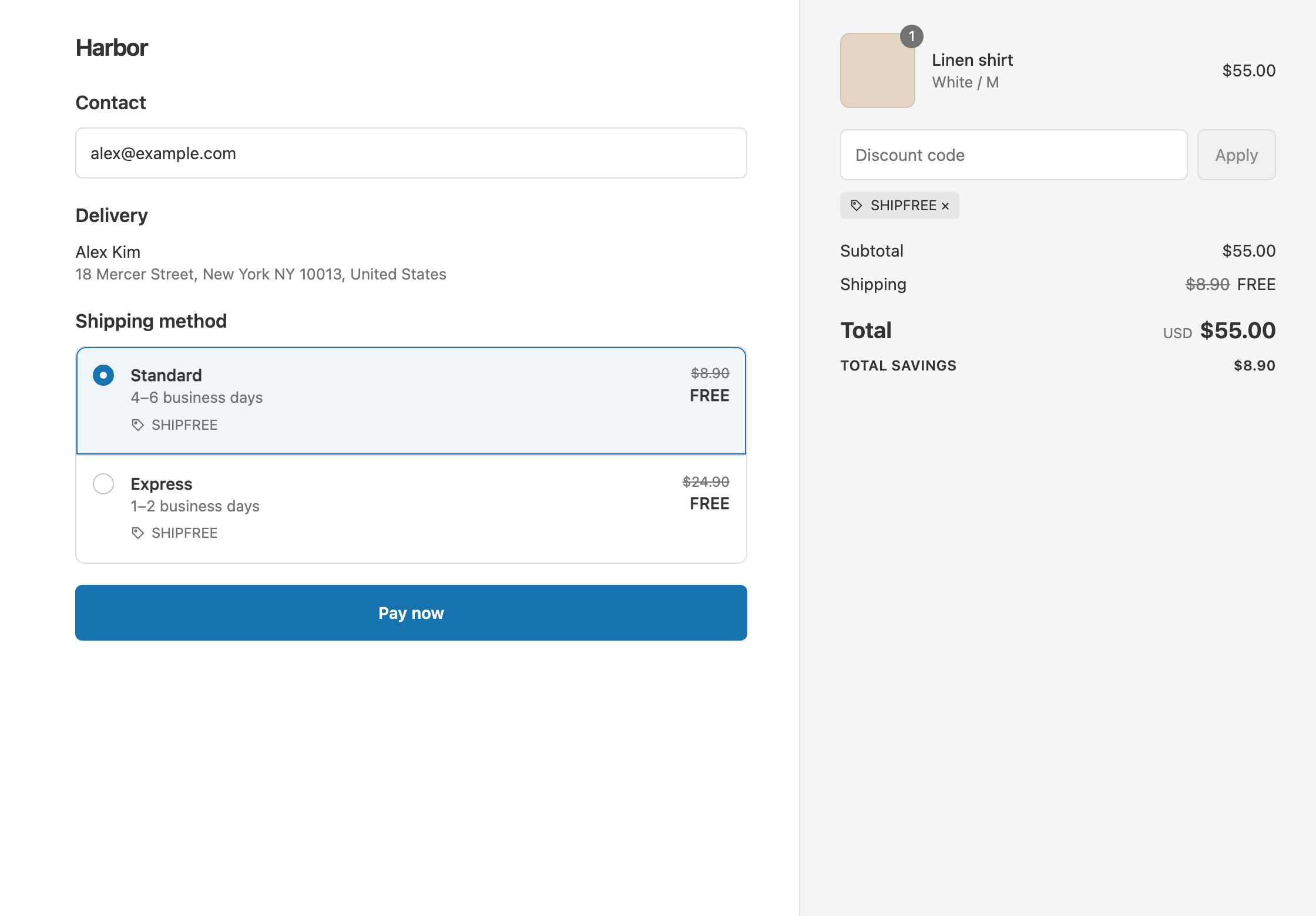
In this example the code is SHIPFREE with a $40 minimum. The store has two rates: Standard $8.90 and Express $24.90.
- Qualifies. A subscriber enters
SHIPFREEon a $55 cart. Standard and Express are both free. The customer pays $55. - Doesn’t qualify. The same subscriber tries
SHIPFREEagain on their next order. Shopify allows one use per customer, so they pay $55 + $8.90 = $63.90. - Doesn’t qualify. A $30 cart with the code is under $40. The customer pays $30 + $8.90 = $38.90.
Set it up
- In the app, click Create Shipping Discount.
- Under Discount method, keep Discount code. Enter
SHIPFREEin the Discount code field. The method can’t be changed later. - In Conditions, click Add condition. Keep Cart total, set Is at least and enter
40. - In Discount setup, set Delivery type to Shipping, Which rates to All shipping rates and Discount value to Free.
- Under Maximum discount uses, tick Limit to one use per customer. To cap the campaign, also tick Limit number of times this discount can be used in total and enter a number.
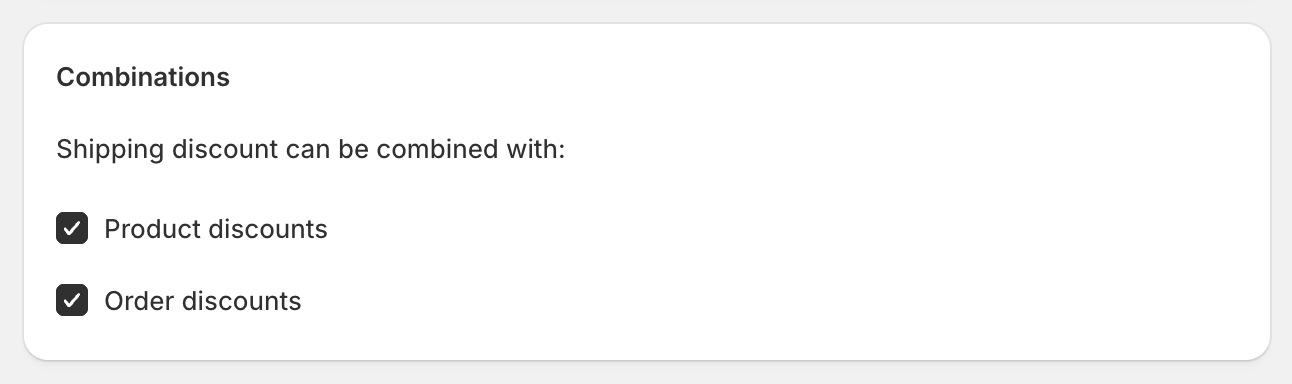
- Under Combinations, keep Product discounts and Order discounts ticked so subscribers can use a welcome code as well.
- Click Create discount, then add the code to your email.
Using it with a 10% welcome code
Many welcome emails give 10% off and free shipping. For both to apply, both discounts must allow it: keep the boxes above ticked in the app, and on the 10% code in Shopify admin, tick Shipping discounts under Combinations. See Shopify’s guide to combining discounts.
Choose the threshold carefully. In this example a subscriber has a $44 cart and uses WELCOME10:
- With Cart total Is at least 40: Cart total counts after discounts, so the cart is $39.60 and misses the $40 minimum. The customer pays $39.60 + $8.90 = $48.50.
- With Cart subtotal Is at least 40: Cart subtotal counts before discounts, so the $44 cart qualifies. The customer pays $39.60.
Use Cart subtotal if the welcome code shouldn’t cost subscribers their free shipping.
Variations
- Free Standard only: set Which rates to Choose specific rates and select Standard. A subscriber who picks Express pays $55 + $24.90 = $79.90.
- $5 off shipping instead of free: set Discount value to Fixed Amount Off and enter 5. Standard becomes $3.90.
- A code that expires: under Active dates, tick Set end date. Useful for a “free shipping this weekend” email.
- Only your home country: add Shipping country Is one of in the same rule group.
- A link that applies the code: send
https://your-store.com/discount/SHIPFREE. The code applies when the subscriber opens it.
Good to know
- To use one code per subscriber, Limit to one use per customer does it. Usage limits only exist on discount codes, not automatic discounts.
- To run it alongside “free shipping over $100”, keep both. Only one shipping discount applies per rate, and Shopify gives the customer the one that saves the most, so a subscriber over $100 ships free either way.
- To make codes from your email platform combine, turn on its “combine with shipping discounts” option. For older Klaviyo and Facebook codes with no such option, our Discount Bridge app turns it on.
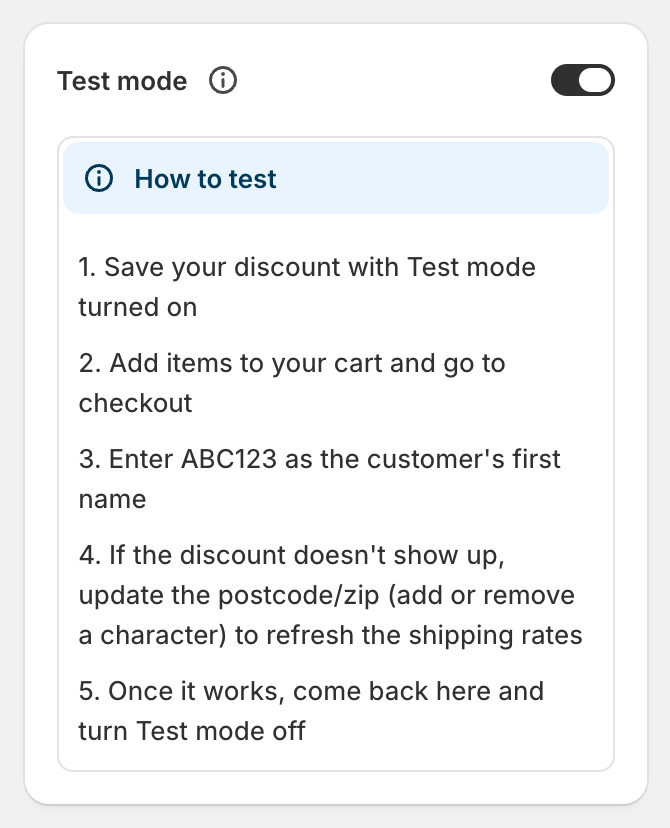
- To test it, turn on Test mode, enter the code, and use
ABC123as the shipping first name.
Related
- Free shipping as a code or an automatic discount
- Keep free shipping with discount codes
- Schedule free shipping
- Conditional free shipping on Shopify
Install RM: Advanced Free Shipping from the Shopify App Store.