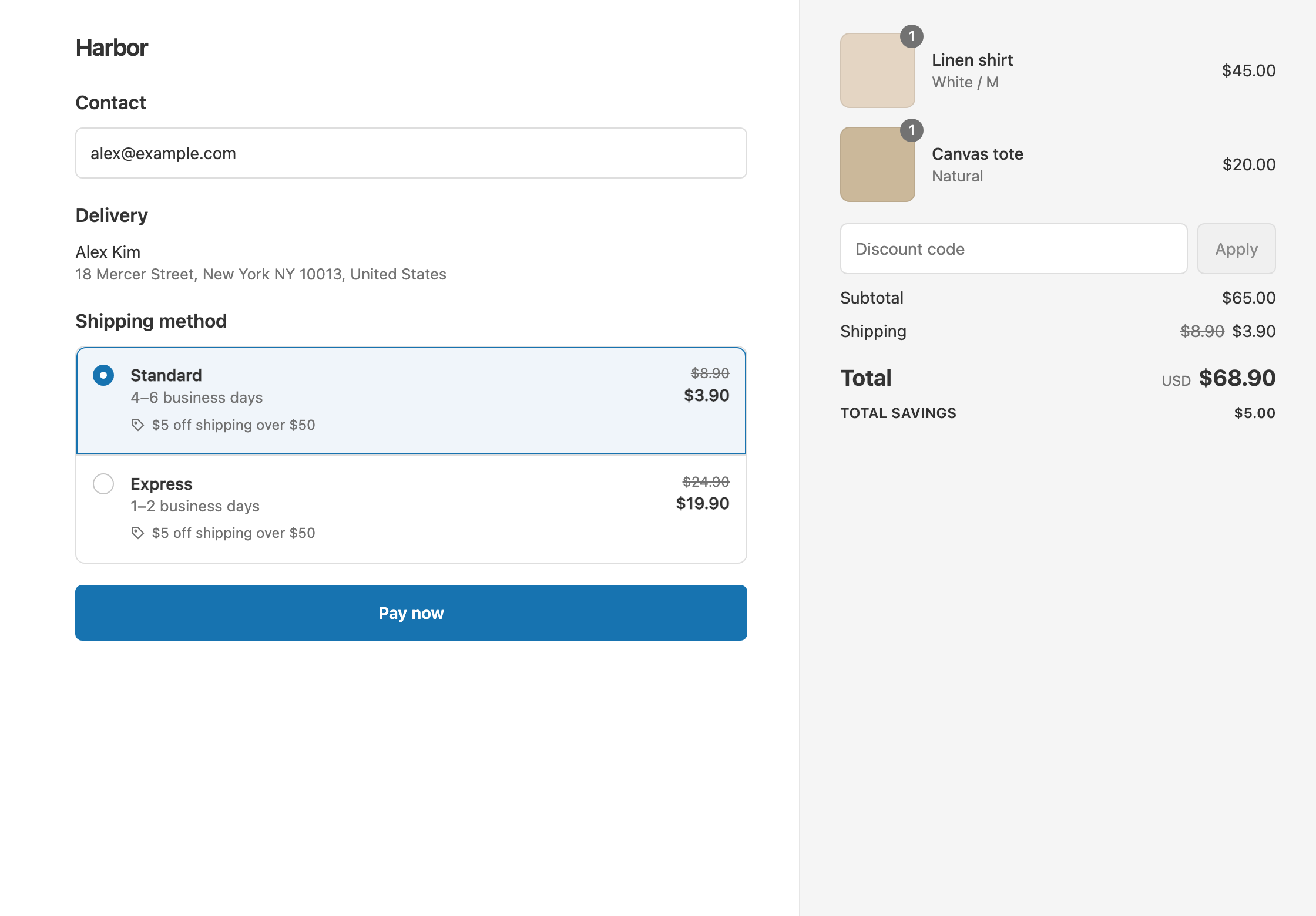
To count your free shipping threshold before discounts, use the condition Cart subtotal. To count it after discounts, use Cart total. Shopify’s own free shipping discount checks its minimum purchase after any discounts it combines with, and there’s no setting to change that. Shopify’s free shipping discount guide says products count at their discounted price once a combinable discount has lowered them, so a 20% code can push a customer under your threshold. RM: Advanced Free Shipping lets you pick either one per discount. It costs $9.90 USD every 30 days, with a 7-day free trial, billed by Shopify.
What the customer gets
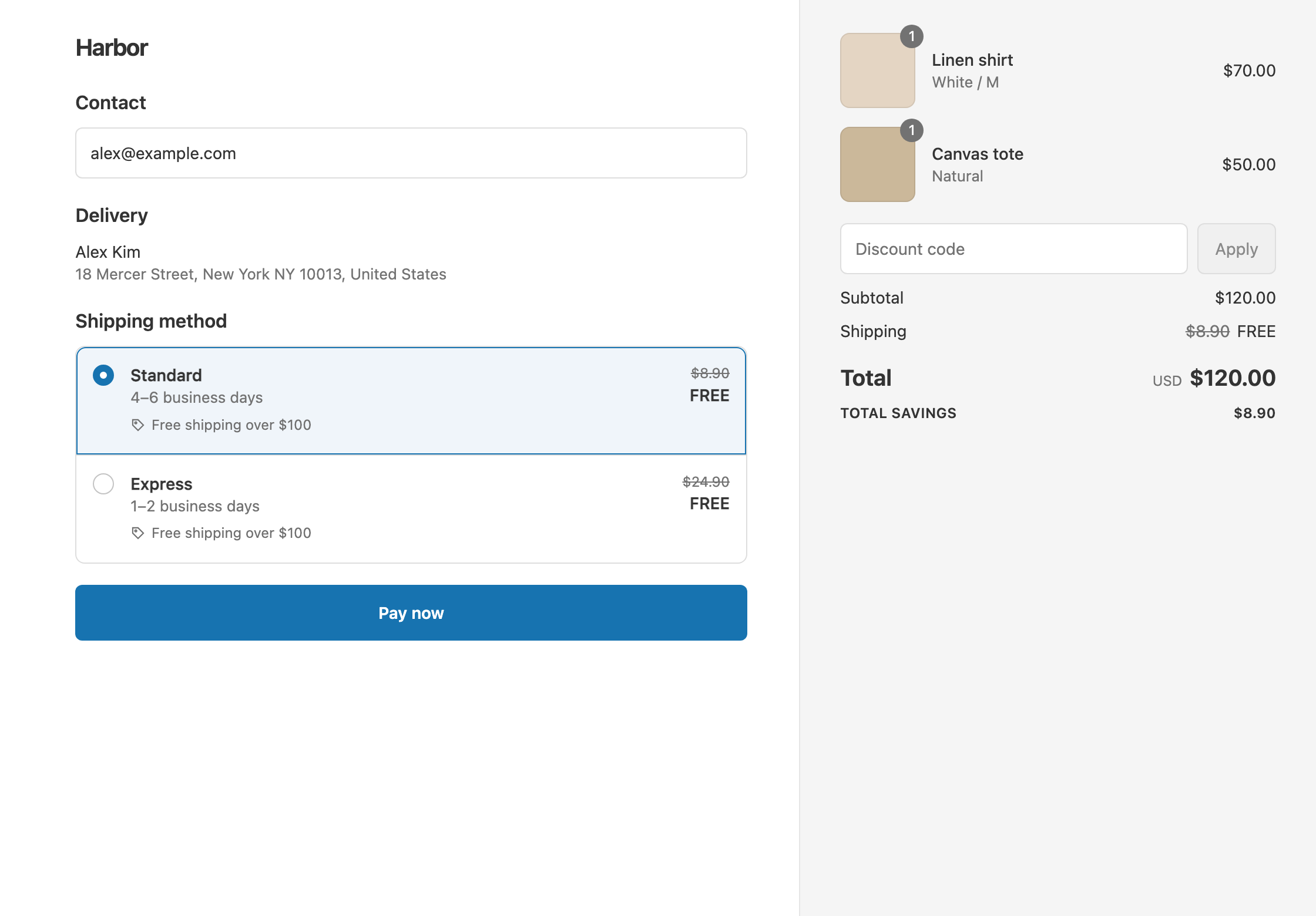
In this example, shipping is free over $100. Standard costs $8.90. A customer has $110 of items in the cart and uses a 20% off code, so the items now cost $88.
With Cart subtotal Is at least 100 (before discounts):
- The app counts $110. The cart qualifies.
- The customer pays $88 for the items and $0 for Standard. Total: $88.
With Cart total Is at least 100 (after discounts):
- The app counts $88. The cart doesn’t qualify.
- The customer pays $88 + $8.90 = $96.90.
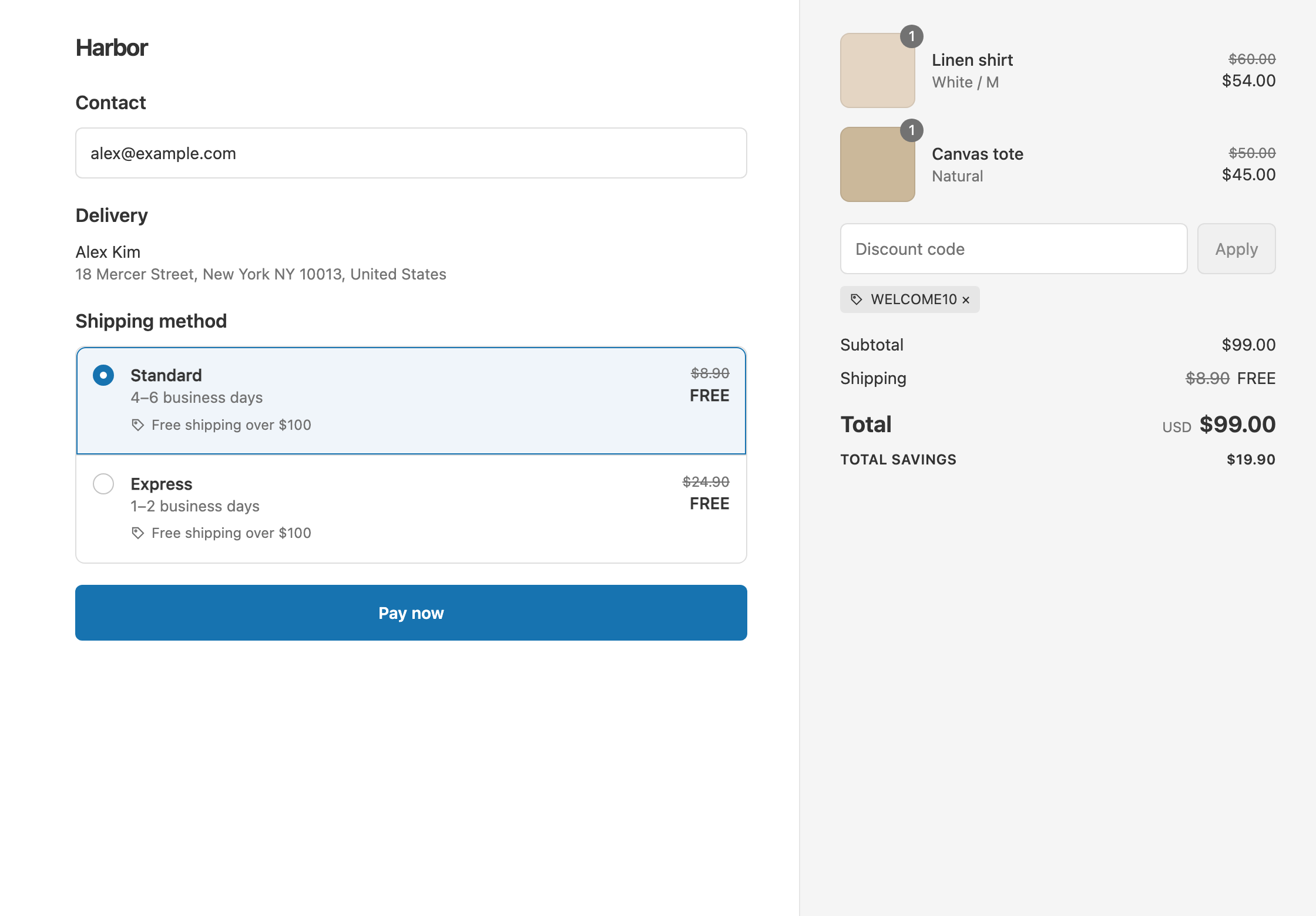
A $130 cart with the same 20% code:
- After the code, the items cost $104. Both conditions pass, and the customer pays $104.
Which one to choose
- Cart subtotal if a discount code should never cost the customer free shipping. This is kinder to shoppers and keeps your threshold message simple: “Free shipping on $100+”.
- Cart total if the customer must still spend $100 after their discounts. This protects your margin during big sales.
Both conditions count only the items. Shipping never counts. Compare-at (“was”) prices aren’t discounts, so both use the price the customer is actually paying.
Set it up
- In the app, click Create Shipping Discount. Under Discount method, choose Automatic discount, and enter a Title such as “Free shipping over $100”.
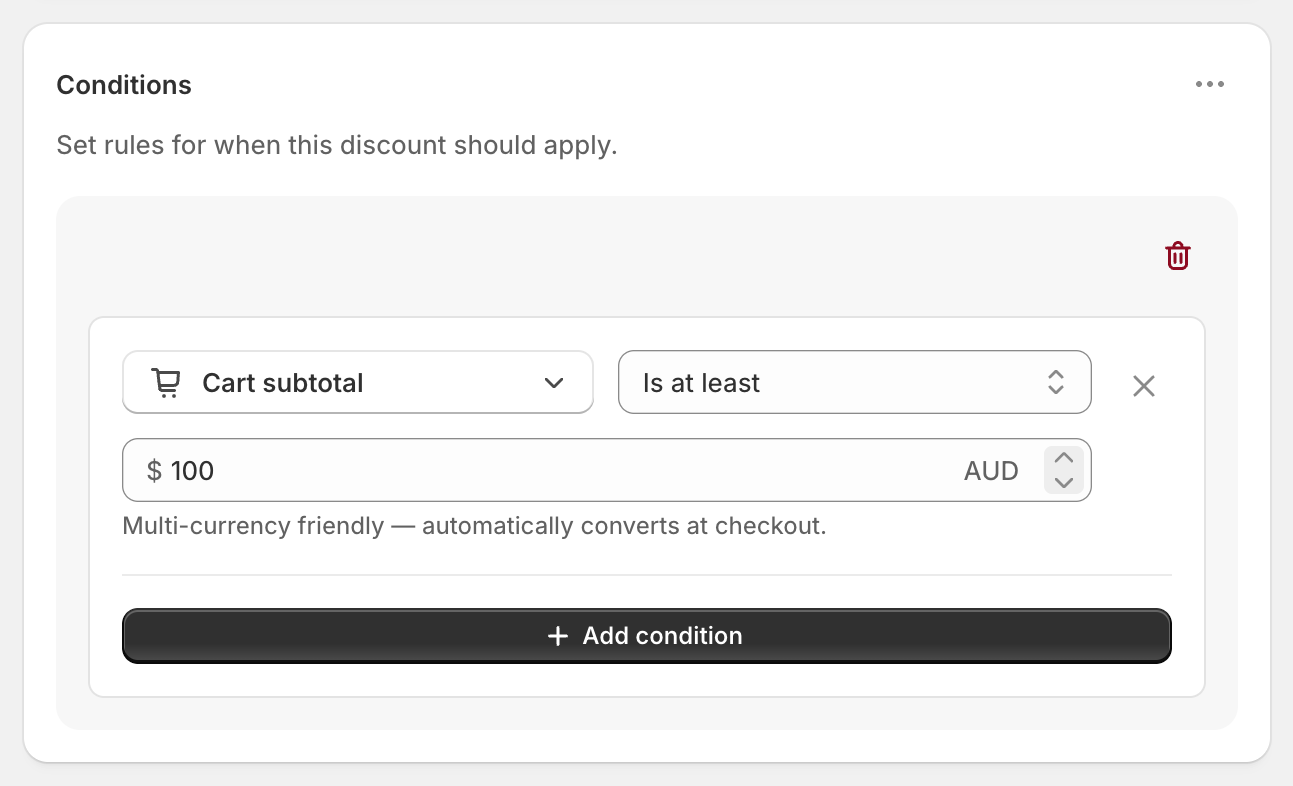
- In Conditions, click Add condition. It starts with Cart total.
- To count before discounts, open the condition menu and choose Cart subtotal. To count after, keep Cart total.
- Set Is at least and enter
100. - In Discount setup, set Delivery type to Shipping, Which rates to All shipping rates and Discount value to Free.
- Under Combinations, keep Product discounts and Order discounts ticked. Otherwise a customer with a code gets only one of the two discounts.
- Click Create discount.
Variations
- Only some products count, before discounts: use Cost of items from collection (subtotal), and pick a collection of the products that should count.
- Only some products count, after discounts: use Cost of items from collection (total). It subtracts product and order discounts, so a $110 basket with 20% off counts as $88.
- Free shipping with some codes but not others: keep Cart subtotal, and leave Shipping discounts unticked under Combinations on the codes that shouldn’t come with free shipping.
- A lower threshold after discounts: use Cart total Is at least 90, so a $110 cart with 20% off ($88) still misses out but a $115 cart ($92) qualifies.
Good to know
- To make a code combine with free shipping, open the code in Shopify admin under Discounts and tick Shipping discounts under Combinations. Both sides must allow it. Shopify’s guide to combining discounts shows where the settings are. See keep free shipping with discount codes.
- To count tax the way your prices show it, do nothing. If your prices include tax, tax is counted. If tax is added at checkout, it isn’t.
- To avoid a cent-perfect match, use Is at least, not Is equal to.
- To set a different amount per currency, enter fixed amounts for Cart total or Cart subtotal, such as USD 100 and GBP 80. Otherwise the amount converts automatically.
- To check both cases, turn on Test mode, check out with the shipping first name
ABC123, and try the same cart with and without your code.
Related
- Keep free shipping when customers use a discount code
- Free shipping over $100
- What Shopify’s free shipping discount can’t do
- Conditional free shipping on Shopify
Install RM: Advanced Free Shipping from the Shopify App Store.